We are happy to announce a new feature: DocDB is now available as a connector in AI tools like Claude and ChatGPT. This gives you two major benefits: access to research tools from within Claude and ChatGPT, and the ability to integrate your DocDB-identified opportunities into other tools via Claude or ChatGPT. Let's dive into the details!
Integrated Research Tools
Researching healthcare providers just got easier than ever! You can still use the DocDB search panel, but now you can access all of our data from within your favorite AI tool. All of the search functionality available within our platform is available to you: searching by geography, physician specialty, recency of update, and more.
Evaluating and Automating Market Opportunities
If you're using our Market Monitor tool, which helps you identify new opportunities in your markets, you can set up a schedule to pipe these into your preferred CRM tool via its connector. For example, if you're using Claude and HubSpot, you could:
- Add DocDB and HubSpot as connectors.
- For DocDB instructions, see below.
- For HubSpot, you can find instructions here.
- Schedule a Claude routine to pull down your latest matches, optionally refine the results further with tags or other information, and then push them to HubSpot.
How to Set Up the DocDB MCP Server
- Open Claude (the desktop app or the claude.ai website).
- Click your user icon in the bottom-left corner, then open Settings.
- Open Connections, look for the Add button in the top-right corner, then click Add Custom Connection.
- Enter DocDB as the name and https://app.docdb.io/mcp as the URL, then click Add.
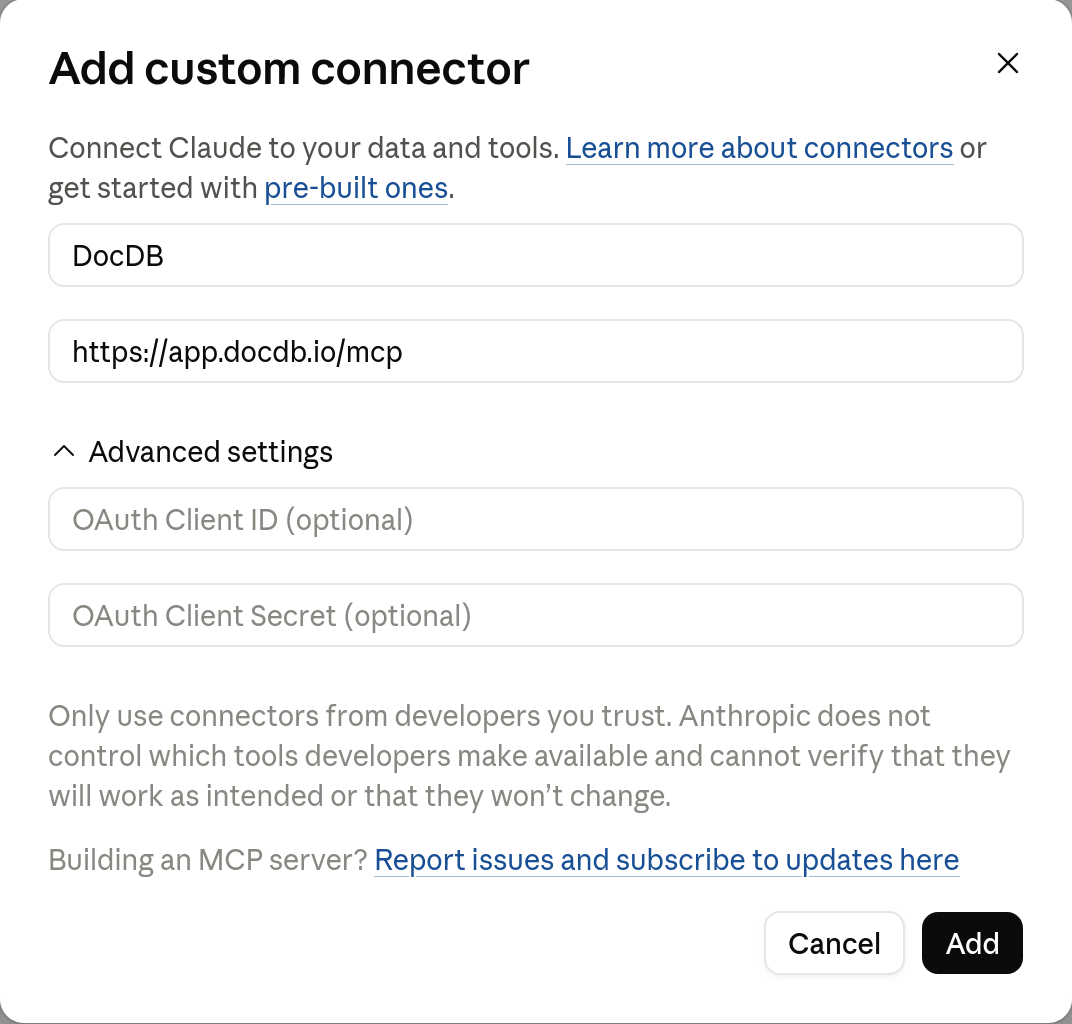
You should see something like this:
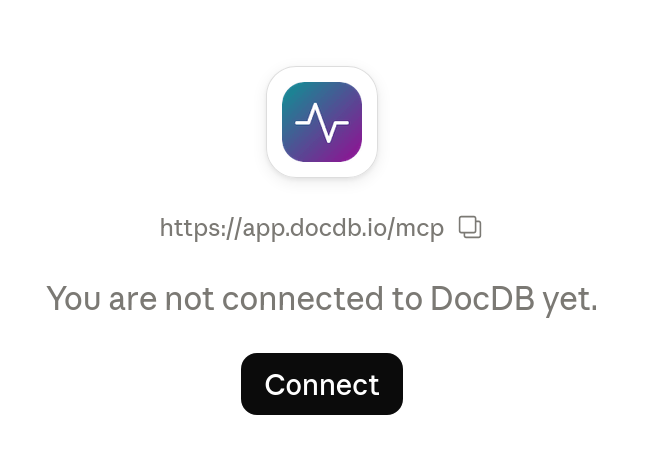
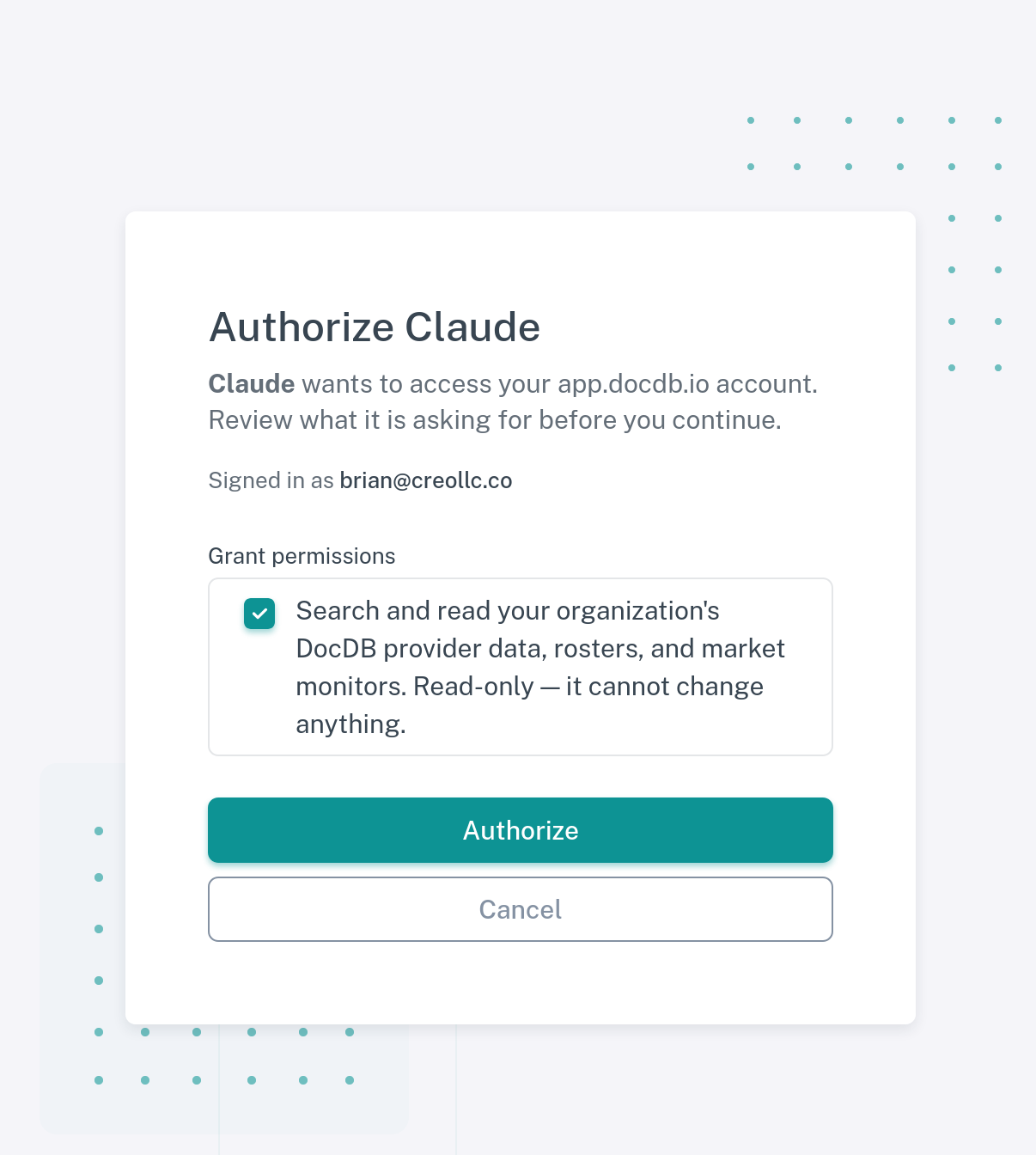
Click Connect and you'll see a consent page. Click Authorize.
Once you do this, you'll see a page asking when Claude can use the tools. Click the dropdown below Tool Permissions and change it to Always allow.
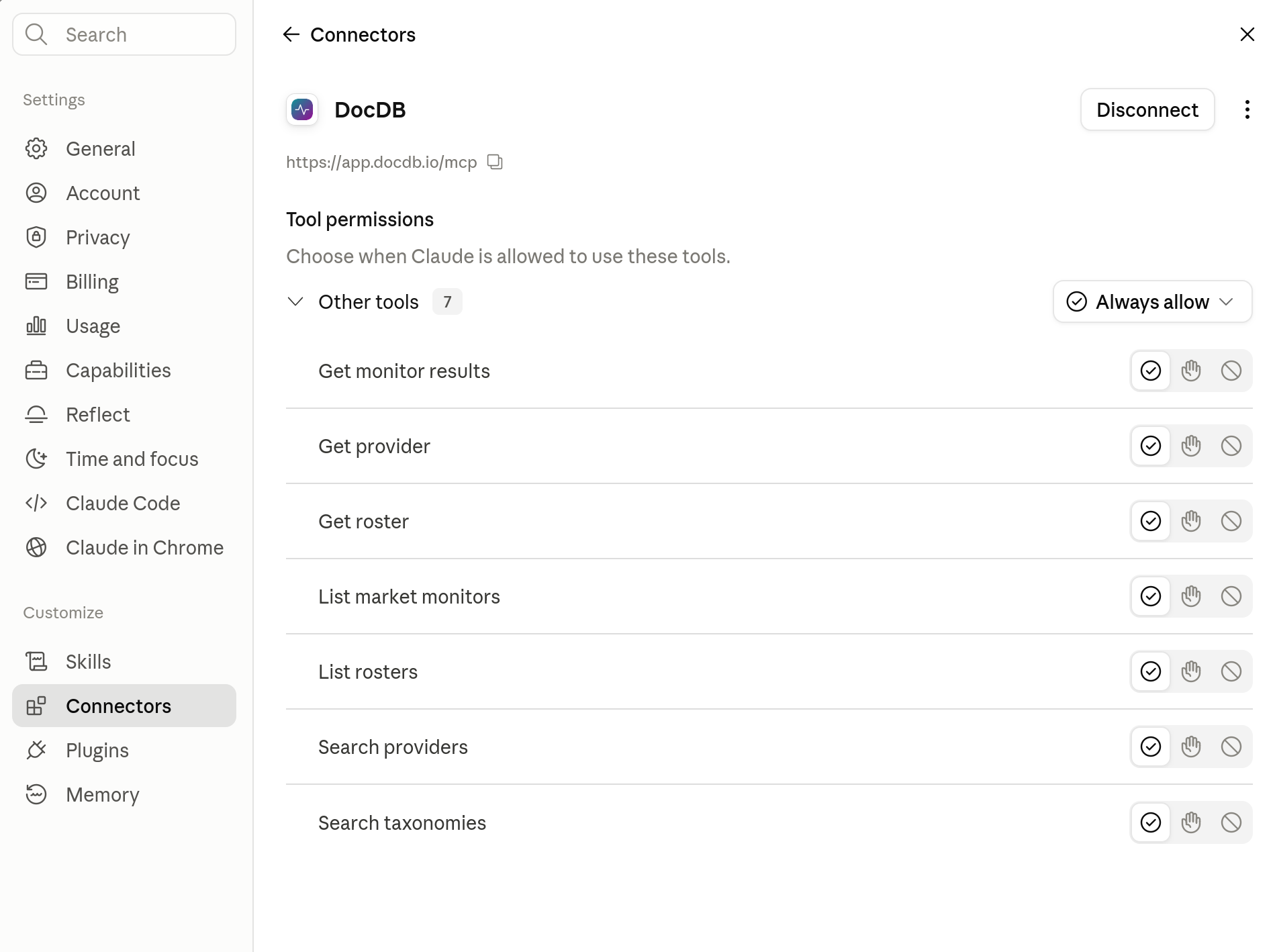
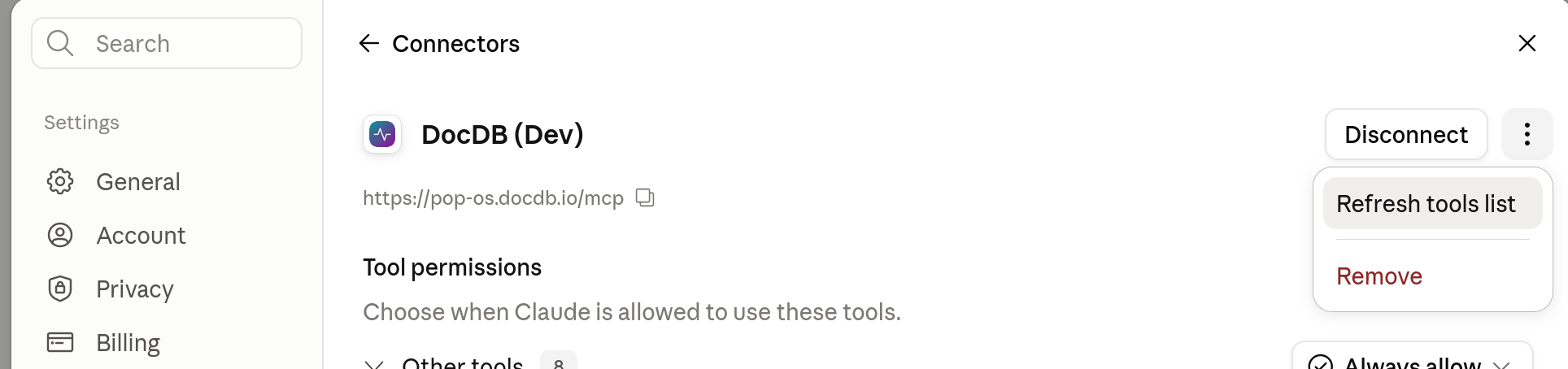
That should be it! As we add new features, you may need to go back to settings and allow them as well. To do that, go back to Connectors, open DocDB, click the three dots in the upper-right corner, then click Refresh tools list.
Initial Reactions
We've been testing this new feature with some early adopters, and they have found it to be super useful for integrating their workflows.
Here's an email we got from a user at As You Are:
SUBJECT: I DID IT!
Way too excited to be sending an email on a Friday night, but I got your MCP connected to Claude and set up my HubSpot. Ran a couple of trials—it was able to backtrack to all the alerts from the beginning, map the data you provide to my fields, and do external research for validation.
If it has questions or requires my attention, it creates a task in HubSpot and sends me a summary.
All those leads are in HubSpot, fully updated with the right statuses and assigned to the right person.
It runs every Wednesday from now on at 8 AM!
I'm so excited. It was super easy once I got into it.
Thanks for your patience and working with me on this!
Have an awesome weekend.
This kind of feedback, of course, makes our development team very happy indeed.
If you have any trouble setting this up for your account, please reach out to us! You can connect via the in-app chat or email us at info@docdb.io.